

How to Set Up Do Not Disturb While Driving on iPhone and Android (2026 Guide)

How to Set Up Do Not Disturb While Driving on iPhone and Android (2026 Guide)
There is a feature on your phone right now that silences every notification, sends automatic replies to anyone who texts you, and keeps your screen dark from the moment your car starts moving until you park.
It is free. It is built in. It requires zero willpower to maintain once it is set up. And the majority of American drivers have never turned it on.
This guide walks you through exactly how to set it up on both iPhone and Android, step by step, in under two minutes. Nothing to download. Nothing to pay for. Just a two-minute setup that turns your phone into a distraction-free device for every drive you take from this point forward.
Why This Feature Exists and Why It Matters
According to NHTSA, cell phone use was cited as the distraction in 14 percent of all distraction-affected fatal traffic crashes in 2024, with police reports noting that at least one involved driver was engaged in some form of cell phone activity at the time of the crash. Injury Facts
That figure, 14 percent of all distraction-related fatal crashes specifically tied to cell phone activity, is what the built-in driving features on both iPhone and Android were designed to address. Apple introduced Do Not Disturb While Driving as part of iOS 11 in 2017, specifically in response to the growing evidence that phone notifications were a primary trigger for dangerous driving behavior. Google followed with its own implementation across Android devices.
The logic behind both features is the same: remove the incoming stimulus before the driver has to decide whether to respond to it. If the phone never lights up, never buzzes, never shows a notification, the temptation to look never arrives. No willpower is required because there is nothing to resist.
This is different from telling yourself you will not check your phone while driving. That approach requires resisting an active urge every time a notification arrives. The Do Not Disturb feature eliminates the urge itself by making sure nothing arrives.
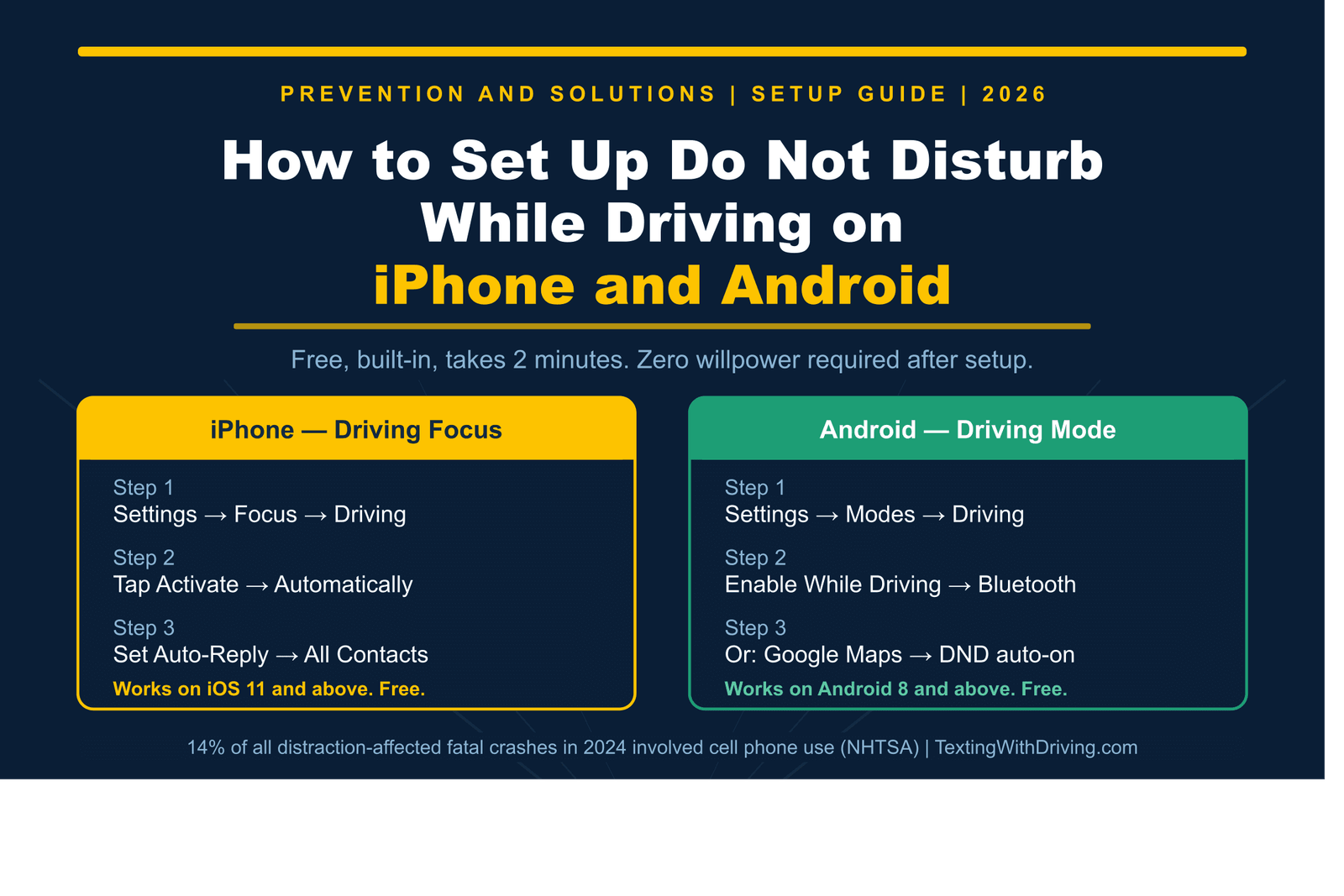
iPhone Setup: Driving Focus (iOS 11 and Later)
Apple’s driving feature has gone through several iterations across iOS versions. In iOS 15, Apple restructured Do Not Disturb into a broader Focus system, and Driving became its own dedicated Focus mode. The result is more customizable than the original Do Not Disturb While Driving feature, and it works on every iPhone running iOS 11 or later, which covers virtually every iPhone in use today.
Here is the complete setup:
Step 1: Open Settings and navigate to Focus.
On your iPhone, open the Settings app. Scroll down until you see Focus and tap it. You will see a list of Focus modes including Do Not Disturb, Sleep, Personal, Work, and Driving. Tap Driving.
If Driving does not appear in your list, tap the plus sign in the upper right corner and select Driving from the available options.
Step 2: Choose how Driving Focus activates.
Tap the option to Turn On Automatically. You will see three activation options:
Automatically: Your iPhone uses Location Services and motion data to detect when you are likely driving and activates Driving Focus without any action on your part. This is the recommended setting for most drivers.
When Connected to Car Bluetooth: Driving Focus activates the moment your iPhone connects to your vehicle’s Bluetooth system. This is the most reliable option if your car has Bluetooth and you consistently connect your phone to it.
When CarPlay is Active: If you use Apple CarPlay, this option activates Driving Focus automatically when CarPlay connects.
Manually: You activate it yourself through Control Center before each drive. This option requires you to remember every time, which defeats much of the purpose.
The Automatically option uses Location Services to determine whether you might be driving. The location data Apple collects for these purposes does not personally identify you. To turn off Location Services for this feature specifically, you can go to Settings, then Privacy, then Location Services, then System Services, then turn off Location-Based Alerts. AAA Foundation for Traffic Safety
Step 3: Set up Auto-Reply.
This is the feature that handles the social side of the problem. When Driving Focus is active, your iPhone automatically sends a reply to anyone who texts you letting them know you are driving and will respond when you stop.
When Do Not Disturb While Driving is on, by default an auto-reply is sent to anyone in your Favorites group. You can change who receives the auto-reply by going to Settings, then Do Not Disturb, then Auto-Reply To. Options include No One, Recents, Favorites, and All Contacts. If anyone responds to your auto-reply message with the word Urgent, all subsequent texts from that person come through for the remainder of your drive. AAA Foundation for Traffic Safety
For most drivers, setting Auto-Reply To to All Contacts is the right choice. It ensures that everyone who messages you receives a response letting them know you are driving, which reduces the social pressure that makes people feel like they need to reply immediately.
You can also customize the auto-reply message itself. The default message says something like “I’m driving with Do Not Disturb on. I’ll see your message when I get where I’m going.” You can edit this to say whatever fits your tone.
Step 4: Configure what still gets through.
By default, Driving Focus blocks almost everything. But there are specific things you can allow:
Emergency alerts, timers, and alarms always come through regardless of your settings.
Phone calls from your Favorites can be allowed through. Go to Settings, then Focus, then Driving, then People, and configure which calls you want to receive.
Navigation from Maps or Google Maps continues to function normally. Turn-by-turn directions still come through audibly.
If someone who is not the driver activates Driving Focus by mistake, they can tap the notification on the lock screen and select I’m Not Driving to deactivate it. This is the correct way to handle the common situation where a passenger’s phone activates the feature because it detects vehicle motion. AAA Foundation for Traffic Safety
Optional: Add Driving Focus to Control Center.
For quick access when you want to turn it on manually before a drive, go to Settings, then Control Center, and add Do Not Disturb While Driving to your quick-access panel. This puts a car icon in Control Center that toggles the feature instantly.
Step 5: Turn it on right now.
Do not wait until your next drive. Open Settings, navigate to Focus, select Driving, and complete the setup before you close this article. It takes about 90 seconds. Every drive you take after this point will be automatically handled.
Android Setup: Driving Mode (Android 8 and Later)
Android’s approach to driving distraction has evolved significantly in 2025 and 2026. Google recently updated how Driving Mode works on Pixel devices, and the feature is now more reliable and more useful than it has been in previous Android versions.
Google revamped Do Not Disturb on Android when it introduced Modes. Alongside it, Google added preset options like Bedtime and Driving. Google has recently updated how Driving Mode works to give users the option to activate it automatically when the phone connects to a car’s Bluetooth unit. To set it up, open the Settings app, go to Modes, then tap Driving and enable it. Next, turn on the While Driving toggle, tap the arrow next to it, and choose either Use Bluetooth or Use Motion and Bluetooth based on your preference. Injury Facts
Here is the complete setup for Android:
Method 1: Through Android Settings (Pixel and most Android devices)
Open the Settings app on your Android phone. Look for a section called Modes, Digital Wellbeing, or Focus Modes depending on your Android version and manufacturer. If you see Modes, tap it, then tap Driving. Enable the mode and configure it to activate automatically either through Bluetooth detection or motion detection.
Once enabled, the Driving mode will activate Do Not Disturb automatically when it detects you are driving, silencing notifications and reducing screen activity.
Method 2: Through Google Maps (works on all Android devices)
Google Maps features an integrated driving mode that automatically activates Do Not Disturb when it detects you are in a moving vehicle while navigation is active. To check or configure this, open Google Maps, tap your profile icon in the upper right corner, select Settings, then Navigation Settings, then Google Assistant Settings. The Driving Mode option controls whether DND activates automatically during navigation. NHTSA
This method is particularly useful because Google Maps is already the most common navigation app on Android devices. If you use Google Maps for most of your driving, the automatic DND activation through the app covers a large portion of your trips without any additional configuration.
Method 3: Samsung devices
Samsung Galaxy phones have their own implementation of driving-related focus modes within their One UI system. On Samsung devices, go to Settings, then Modes and Routines. You can create a Driving routine that automatically activates Do Not Disturb when your phone connects to your car’s Bluetooth. This Samsung-specific approach is generally more reliable on Galaxy devices than the default Android method because it integrates directly with Samsung’s proprietary Bluetooth detection system.
Method 4: Android Auto
Android Auto is designed to minimize distractions to help drivers stay focused on the road by providing larger touch targets, a simplified interface, and the help of the Google Assistant. When Android Auto is connected, it takes over the phone’s interface with a driving-optimized layout that makes most standard app interactions unavailable while the vehicle is in motion. Injury Facts
If your car supports Android Auto either through a USB connection or wirelessly, connecting it automatically puts your phone into a driving-optimized mode. Most notifications are suppressed while Android Auto is active, and interactions happen through Google Assistant voice commands rather than screen touches.
Android Auto is available on Google Play for devices running Android 6.0 or higher. Wireless Android Auto requires Android 11 or later and a compatible vehicle head unit.
What Happens When Either Feature Is Active
Understanding what the feature actually does helps you trust it enough to leave it on.
When iPhone Driving Focus is active:
The screen stays dark and silent. Incoming texts, social media notifications, emails, and app alerts are all suppressed. No vibration, no sound, no screen light-up.
Anyone who texts you automatically receives your custom driving reply. If they reply with the word Urgent, their message comes through so you know something genuinely needs attention.
Navigation from Apple Maps, Google Maps, or Waze continues to function normally. Voice directions still come through your speakers or Bluetooth.
Phone calls from your Favorites can still come through if you have configured that option. Emergency alerts, timers, and alarms always come through regardless of settings.
When Android Driving Mode or Android Auto is active:
Notifications are silenced based on your configuration. Android Auto presents a simplified interface that limits what you can access on the screen.
Google Assistant handles voice commands so you can send messages, get directions, make calls, and control music entirely by voice without touching the screen.
Incoming calls can still come through via your car’s speaker system using Bluetooth.
The Passenger Problem and How to Handle It
Both iPhone and Android driving features can activate when you are a passenger in a moving vehicle, not just a driver. This is one of the most common complaints people have about the automatic detection.
If Do Not Disturb While Driving becomes active when you are not driving, for example when you are a passenger, you can turn it off by tapping the notification on the lock screen and selecting I’m Not Driving. You can also swipe up from the bottom of the screen and tap I’m Not Driving.</invite>
On Android, a similar override option appears when the mode activates. Tapping it tells the system you are a passenger and deactivates the driving restrictions for that trip.
If the false activation while being a passenger bothers you, switch from the Automatic detection method to the Bluetooth connection method. When you choose Bluetooth as the trigger, the feature only activates when your specific phone connects to your specific car, virtually eliminating false activations.
Why This Works Better Than Willpower Alone
The research on distracted driving behavior consistently identifies one of the most important findings in the field: decisions made before the temptation arrives are more effective than willpower applied in the moment of temptation.
A 2015 study published in the Journal of Experimental Psychology found that merely receiving a notification while driving, including the auditory alert and screen vibration, was enough to induce mind-wandering similar to that caused by active phone use. The researchers concluded that the incoming notification itself, not just the act of reading it, contributes to cognitive distraction. AAA Foundation for Traffic Safety
Think about what that means for phone-free driving. Even if a driver successfully resists the urge to look at a notification, simply receiving it produces measurable cognitive distraction. The Do Not Disturb feature solves this at the source. No notification arrives. No distraction occurs. There is nothing to resist.
This is meaningfully different from relying on self-control. The phone is not asking you to resist anything because it never shows you anything to resist. The decision was made during the 90-second setup. Every drive after that is handled automatically.
This same principle, making the safer behavior the automatic behavior rather than the effortful one, is why the behavioral research supports pre-drive phone placement in the back seat alongside the Do Not Disturb feature. Both strategies remove the decision from the moment of highest temptation and place it somewhere safer. For a complete overview of all the app-based and behavioral tools available, see our guide to the best apps to block texting while driving.
The Legal Dimension in 2026
Setting up Do Not Disturb While Driving is not just good safety practice. In many states, it helps you stay on the right side of the law.
As of 2026, 33 states plus DC have enacted full handheld bans for all drivers, and Pennsylvania joined them with full enforcement of Paul Miller’s Law beginning June 5, 2026. In those states, holding your phone to read a notification while driving is a primary traffic offense, meaning an officer can stop you specifically for that reason.
The Do Not Disturb feature removes the scenario where you are tempted to hold the phone by ensuring there is nothing arriving on the screen to tempt you. It does not technically make you legally compliant on its own if you still pick up the phone, but it dramatically reduces the behavioral situations where a violation is likely to occur.
For a full overview of what the law requires in your specific state, see our hands-free driving laws by state 2026 guide which covers all 50 states. For the specific details of recently enacted laws in Pennsylvania and Missouri, see our individual guides to Pennsylvania’s distracted driving law 2026 and Missouri’s hands-free driving law 2026.
The One Thing to Do Before Your Next Drive
Stop reading. Open your phone’s Settings app. Navigate to Focus then Driving on iPhone, or to Modes then Driving on Android. Complete the setup.
It takes 90 seconds. It costs nothing. It works every time you get in the car without requiring you to remember to do anything. And it eliminates the single most common pathway from a buzzing notification to a hand reaching for a phone at 65 miles per hour.
The statistics on what phone use while driving costs in lives and injuries are covered throughout this site. The distracted driving statistics 2026 overview has the complete national picture. The real danger of texting while driving article covers the specific physics of what five seconds of inattention at highway speed actually produces.
But you do not need to read any more of it before you set up this feature. You need to open your Settings app.
Sources Used in This Article
All links verified working before publication.
Apple Support: Stay Focused While Driving With iPhone — Official Apple guidance, updated 2026
Apple Support: How to Turn Do Not Disturb On or Off — iOS 18 and Focus system details
Apple Manuals Plus: Turn On Do Not Disturb While Driving on iPhone — Step-by-step setup
Android Central: Google Has Finally Fixed Android’s Driving Mode — February 2026 update on Pixel Driving Mode Bluetooth detection
Google Play: Android Auto — Official Android Auto download
MakeUseOf: How to Stop Google Maps Activating Do Not Disturb on Android While Driving — Configuration options
MacObserver: How to Use Do Not Disturb on iPhone 2026 Guide — iOS 18.1 Intelligent Breakthrough feature
NHTSA: Distracted Driving — 14 percent cell phone crash statistic, 2024 data
GHSA: Distracted Driving State Laws — State law context
TextingWithDriving.com is professionally built and maintained to ensure accurate, accessible safety information reaches every driver who needs it. Website development and ongoing support is handled by Budgetic, a digital agency specializing in purpose-driven WordPress websites.

About Texting With Driving
TextingWithDriving.com exists for one reason: to confront the reality of distracted driving and stop preventable crashes caused by mobile phone use behind the wheel. Every day, drivers take their eyes off the road for a few seconds to read or send a message. Those few seconds are enough to cause life-altering consequences. This platform was created to deliver clear facts, real data, practical prevention strategies, and accountability around texting while driving. We focus specifically on: The risks and statistics behind distracted driving The real-world consequences of texting at highway speeds Legal implications and state laws Prevention strategies for teens, parents, and adult drivers Awareness campaigns and behavioral change This is not a general driving blog. It is a focused awareness initiative built around one critical issue: phone distraction behind the wheel. Our content is direct, research-driven, and practical. We prioritize accuracy over opinion and education over sensationalism. The goal is simple — reduce distracted driving incidents by increasing awareness and responsibility. If one article causes one driver to put their phone down, the mission is working. For inquiries or partnerships, contact: privacy@textingwithdriving.com
View all posts by Texting With Driving