

Hands-Free While Driving: The Complete 2026 Technology Setup Guide

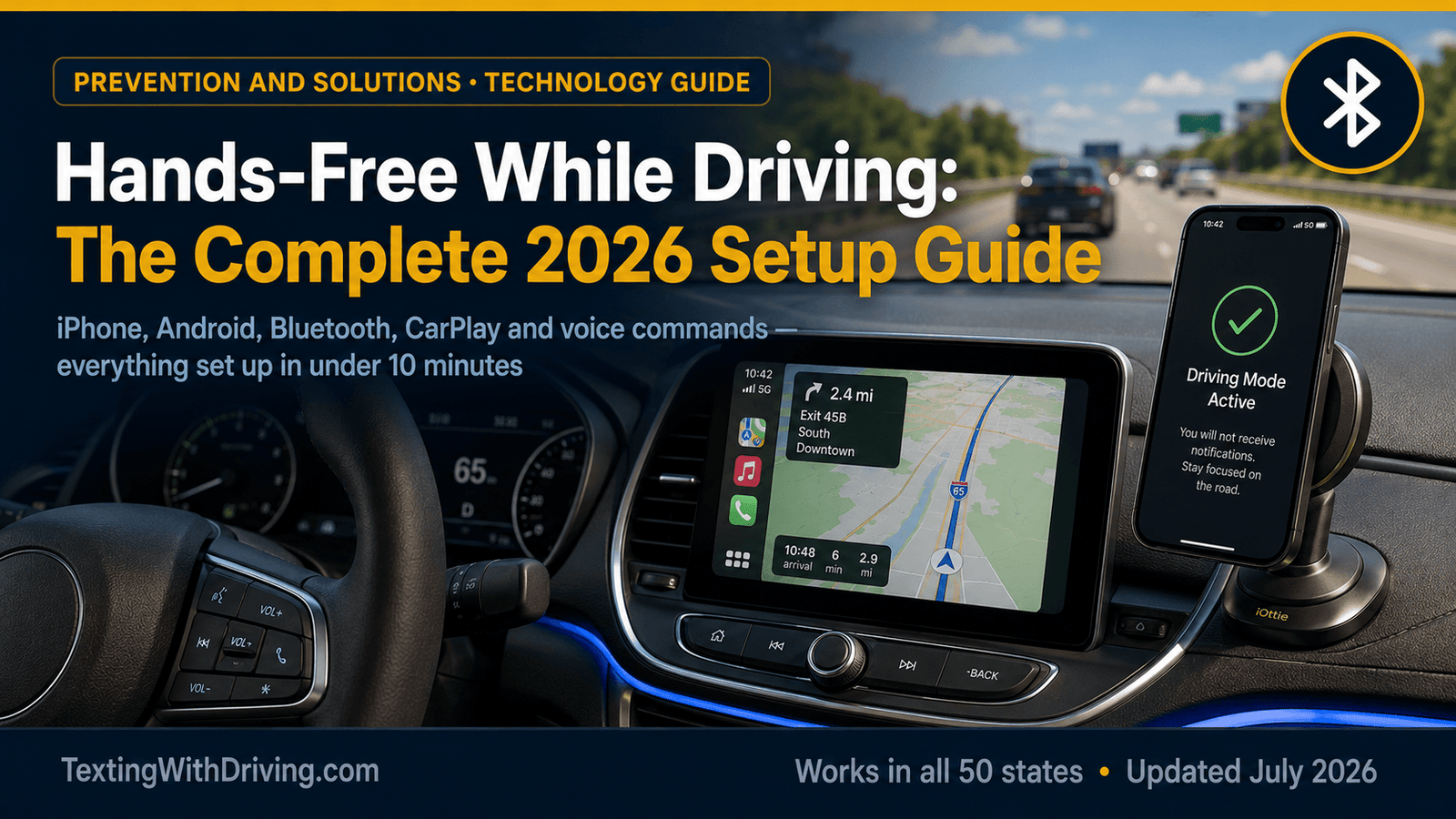
Hands-Free While Driving: The Complete 2026 Setup Guide
Hands-free while driving is no longer optional in 33 states plus DC — it is the legal minimum. And in every other state, the research is unambiguous: even where the law permits holding a phone, the cognitive distraction it produces is the same whether the conversation is handheld or Bluetooth. This guide makes hands-free while driving automatic, complete, and correctly configured before you reach the end of this article.
The complete setup covers four systems in order of installation priority: iPhone Driving Focus, Android driving mode, Bluetooth pairing, and Apple CarPlay or Android Auto for vehicles with compatible infotainment displays. Most drivers need only one or two of these depending on their phone and vehicle. Every setup takes under five minutes individually. The full configuration for any driver takes under ten minutes total and then runs automatically for every future drive.
Why Setup Matters More Than Awareness
Before the instructions, one data point establishes why a configured technology system outperforms behavioral willpower every time.
A September 2025 report from GHSA and Cambridge Mobile Telematics found that drivers with a high level of cell phone distraction are 240 percent more likely to crash. The research also shows that the approach of telling drivers to put the phone down through awareness campaigns produces limited behavioral change without the environmental and technological structures that make compliance the path of least resistance.
A properly configured hands-free while driving setup makes compliance the default, not the effortful choice. When Driving Focus activates automatically as the car moves, when the auto-reply sends itself, when calls route to Bluetooth without the driver touching anything — compliance happens because the technology does the work rather than relying on the driver to choose it under pressure at each drive.
As we documented in our 10 proven ways to stop texting while driving article, environmental restructuring and technology automation consistently outperform behavioral intention in the distracted driving research literature. This setup guide is the full implementation of that approach.
System 1: iPhone Driving Focus — The Most Important Setup
Who needs this: Every iPhone user. This is the single highest-impact hands-free while driving configuration available on any smartphone, and it takes under two minutes.
Turning on the Driving Focus helps you stay focused on the road. When you turn it on, text messages and other notifications are silenced or limited. Incoming calls are allowed only when iPhone is connected to CarPlay — a car Bluetooth system — or a hands-free accessory.
Step-by-Step Setup
Step 1. Open the Settings app on your iPhone.
Step 2. Tap Focus, then tap Driving. If you do not see Driving listed, tap the plus icon at the top right and select Driving from the list.
Step 3. Tap Activate and choose your activation trigger. The three options are:
- Automatically — iPhone detects vehicle motion using sensors and activates Driving Focus when the car is moving. This is the recommended setting. It requires no action from the driver before any drive.
- When Connected to Car Bluetooth — activates when your iPhone connects to a Bluetooth system it recognizes as your vehicle. Reliable if you always use Bluetooth in the car; does not activate in rental vehicles or unfamiliar cars unless you pair them.
- Activate with CarPlay — activates automatically when the iPhone connects to a CarPlay system. Ideal if your vehicle has CarPlay but as a secondary activation rather than the primary.
For most drivers, Automatically is the correct choice. It activates without any dependency on Bluetooth pairing or CarPlay connection.
Step 4. Tap Auto-Reply within the Driving Focus settings. Choose from:
- No One — no auto-replies are sent
- Recents — auto-replies go to recent contacts
- Favorites — auto-replies go to contacts in your Favorites list
- All Contacts — auto-replies go to anyone in your contacts
The recommended setting is All Contacts with a custom auto-reply message. Tap Auto-Reply Message and customize it to something like: “I’m driving and will reply when I arrive. If it’s urgent, reply URGENT.”
The auto-reply is the feature that addresses the specific anxiety that drives most phone checking while driving: the worry that unanswered messages are creating social obligation. When every sender automatically receives a response explaining the situation, the obligation is discharged without the driver doing anything. This eliminates the psychological pull to check the phone at the next red light.
Step 5. Back in the Driving Focus settings, tap Allowed Notifications. By default, Driving Focus silences most notifications. Review the list and add any contacts or apps whose notifications you genuinely need while driving (emergency contacts, for example). Be conservative — every notification allowed is a potential distraction.
Step 6. Verify the setup is working by opening Control Center (swipe down from the top right corner on iPhone X and later, or swipe up from the bottom on older models). The Focus icon should show Driving Mode as available. Take a short drive and confirm the Focus activates and the lock screen shows the Driving Focus indicator.
What Driving Focus Does and Does Not Do
Driving Focus silences incoming message notifications, social media notifications, app alerts, and most other notifications during the drive.
Driving Focus still allows incoming calls when the iPhone is connected to CarPlay or a Bluetooth hands-free system. Calls through Bluetooth or CarPlay remain fully functional.
Driving Focus does not prevent the driver from picking up the phone and using it manually. It eliminates the notification pull that makes picking up the phone tempting, but it does not lock the screen. For teen drivers or for families who want an additional compliance layer, the apps reviewed in our best apps to block texting while driving article add enforcement capability on top of Driving Focus.
System 2: Android Driving Mode — The Complete Setup
Who needs this: Every Android user. Android Auto and Google Assistant Driving Mode together provide the equivalent of iPhone’s Driving Focus plus CarPlay in a unified system.
Option A: Android Auto Setup (Recommended for Vehicles with Compatible Display)
Android Auto transforms your car’s infotainment system into a driver-optimized interface for your Android smartphone. When you connect your phone to a compatible vehicle display, Android Auto takes over the screen with a simplified interface designed specifically for in-car use.
Step 1. Check compatibility. Your vehicle needs a compatible infotainment display (most vehicles manufactured from 2016 onward support Android Auto, either natively or through an aftermarket head unit). Check your owner’s manual or search your vehicle’s make, model, and year plus “Android Auto compatibility.”
Step 2. On your Android phone, search for Android Auto in the Google Play Store. Most modern Android phones come with this app pre-installed. If not, download it — it is free.
Step 3. Enable required permissions. When you open Android Auto for the first time, it will request a series of permissions including contacts, phone, SMS, and microphone access. Allow all of these — they are required for the hands-free calling, voice messaging, and navigation functions to work.
Step 4 — Wired connection: Use a high-quality USB data cable (not a charging-only cable) to connect your Android phone to your vehicle’s USB port. The Android Auto screen will automatically appear on your vehicle’s infotainment display. Some ports are charge-only — use a port labeled with a phone icon or “data.”
Step 4 — Wireless connection: If your vehicle supports wireless Android Auto, enable Bluetooth and Wi-Fi on your Android phone, pair with your vehicle, and approve connection requests. You can set it up to auto-activate when your phone connects to your car’s Bluetooth — this is the most convenient daily-use configuration and eliminates the need to plug in before each drive.
Step 5. Once connected, you will see the Android Auto home screen on your vehicle’s display with large touch targets for Navigation, Phone, Messages, and Media. Go to Settings within Android Auto and select Customize launcher — keep only the essential tiles (Navigation, Music, Calls) to minimize screen interaction while driving.
Step 6. Set up voice-first mode. Open the Google Assistant settings on your phone, tap Assistant devices → Phone → Driving, and turn on Voice-first mode. This forces all interactions to be voice-driven, which is the highest-safety configuration.
Option B: Google Assistant Driving Mode (For Phones Without CarPlay-Compatible Vehicle)
If your vehicle does not support Android Auto, Google Assistant Driving Mode provides a phone-based equivalent.
Once enabled, invoke your assistant with “Hey Google, let’s drive.” This pulls up a driving interface allowing text messages to be read aloud and replied to by voice, no navigation required.
To enable: Open the Google app on your Android phone → tap your profile picture → Settings → Google Assistant → Transportation → turn on Driving mode. The system will auto-activate when it detects driving based on motion and Bluetooth connection.
Option C: Android Do Not Disturb While Driving
For the most direct distraction elimination on Android regardless of vehicle compatibility:
Settings → Digital Wellbeing & Parental Controls → Driving Do Not Disturb (the exact path varies by Android version and manufacturer). Enable automatic activation, set up auto-reply for messages, and customize which contacts can break through the Do Not Disturb status.
This provides the same core function as iPhone’s Driving Focus — silencing notifications automatically during drives — without requiring CarPlay or Android Auto hardware compatibility.
System 3: Bluetooth Pairing — The Foundation of Every Hands-Free Setup
Who needs this: Every driver who wants to make or receive calls while driving legally in the 33 states plus DC with comprehensive hands-free laws, and every driver who wants legal compliance in school zones and work zones in any state.
Bluetooth pairing is the foundation of hands-free calling regardless of whether your vehicle has a full CarPlay or Android Auto system. Even the most basic vehicle audio systems made since 2010 include Bluetooth phone pairing that enables hands-free calling through the vehicle’s speakers and microphone.
Step-by-Step Bluetooth Pairing (Universal Process)
Step 1. Put your vehicle’s audio system into Bluetooth pairing mode. This varies by manufacturer but typically involves: press the Phone or Bluetooth button on the vehicle’s head unit until it displays “Pairing Mode” or a Bluetooth icon flashes. In newer vehicles, go to the infotainment settings menu → Bluetooth → Add New Device.
Step 2. On your iPhone: Settings → Bluetooth → ensure Bluetooth is On. Your vehicle should appear in the list of available devices. Tap it to pair. Confirm the PIN code that displays on both the vehicle screen and your phone if prompted.
Step 3. On Android: Settings → Connections → Bluetooth → ensure Bluetooth is On → tap Scan or Add Device. Select your vehicle from the list. Confirm the PIN.
Step 4. Test the pairing by making a call using your phone while Bluetooth is connected. The call should route to the vehicle’s speakers automatically.
Step 5. Enable automatic reconnection. Both iPhone and Android remember paired Bluetooth devices and reconnect automatically when you enter the vehicle and start the car. No manual action is required once the initial pairing is complete.
Step 6. Enable voice command calling through the vehicle. Most Bluetooth-paired vehicles allow drivers to initiate calls by pressing a voice command button on the steering wheel and saying “Call [contact name].” Test this with a low-stakes call (a voicemail, for example) before relying on it in traffic.
What to Do If Your Vehicle Has No Bluetooth
Older vehicles without built-in Bluetooth have two practical solutions:
FM transmitter with Bluetooth. A Bluetooth FM transmitter plugs into the vehicle’s auxiliary power (12V) outlet and pairs with the phone, transmitting audio through an unused FM frequency that the vehicle’s radio receives. Calls route through the vehicle’s speakers. Approximately $25 to $45. Not ideal for audio quality but fully functional for hands-free calling.
Aftermarket Bluetooth head unit. A replacement car stereo with built-in Bluetooth typically costs $80 to $200 installed. Provides full Bluetooth calling, often with CarPlay or Android Auto capability. The most complete solution for older vehicles that will be used long-term.
System 4: Apple CarPlay — Full Integration Setup
Who needs this: iPhone users whose vehicles include a compatible touchscreen infotainment display (most vehicles since 2016, with 93.9% of new vehicles supporting CarPlay as of 2026).
Apple CarPlay is a smart interface that mirrors supported iPhone apps onto your car’s touchscreen display. Instead of holding your phone, you interact with apps using voice commands, steering-wheel buttons, or simple on-screen taps.
Wired CarPlay Setup
Step 1. Confirm CarPlay compatibility — check your vehicle’s owner’s manual or search “[vehicle make/model/year] Apple CarPlay compatible.”
Step 2. iPhone 15 and newer require a USB-C cable. iPhone 14 and older require a Lightning cable. Use a certified Apple or MFi-certified cable — cheap uncertified cables cause connection failures and intermittent disconnects.
Step 3. Connect the cable from your iPhone to the vehicle’s USB port labeled with the iPhone or CarPlay icon (not all USB ports in a vehicle support CarPlay — use the data port, not a charge-only port).
Step 4. A prompt will appear on your iPhone asking to allow CarPlay. Tap Allow. The CarPlay interface appears on the vehicle’s touchscreen automatically.
Step 5. Customize the CarPlay home screen. On your iPhone: Settings → General → CarPlay → select your vehicle → you will see the app layout editor. Arrange the apps you use while driving (Maps, Phone, Music, Podcasts, Messages) prominently and remove apps you do not use while driving to reduce visual clutter.
Step 6. Configure Siri for CarPlay. Ensure “Listen for Hey Siri” is enabled in Settings → Siri & Search. In CarPlay, you can activate Siri by saying “Hey Siri” or by pressing the voice command button on the steering wheel. Siri in CarPlay handles navigation, calls, messages, and media entirely by voice.
Wireless CarPlay Setup
Step 1. Verify your vehicle supports wireless CarPlay (check owner’s manual — wireless CarPlay requires a Wi-Fi receiver in the vehicle in addition to Bluetooth).
Step 2. Enable Bluetooth and Wi-Fi on your iPhone.
Step 3. In the vehicle’s infotainment system, go to CarPlay settings and select your iPhone from the paired devices list.
Step 4. Approve the connection prompts on both the vehicle screen and your iPhone.
Step 5. Once paired wirelessly, future connections happen automatically when you start the car with your iPhone in range. No cable required.
Wireless CarPlay drains battery faster because it uses Wi-Fi for data transmission and Bluetooth for audio. For long drives, consider using a MagSafe charger or USB-C cable alongside wireless CarPlay to maintain battery level.
System 5: Voice Command Mastery — Using the Setup You Have Built
The configuration above is only fully effective if the driver uses voice commands rather than screen touches while driving. Voice commands are the core of legal and safe hands-free while driving operation.
The most useful voice commands for everyday driving:
Navigation:
- “Hey Siri, navigate to [destination]” / “Hey Google, navigate to [destination]”
- “Hey Siri, what’s the traffic like on my route?”
- “Hey Siri, find a gas station near me”
Calls:
- “Hey Siri, call [contact name]”
- “Hey Siri, call [contact name] on speaker”
- “Hey Google, call [contact name]”
Messages:
- “Hey Siri, read my messages”
- “Hey Siri, reply to [contact] saying I’ll be there in 10 minutes”
- “Hey Google, text [contact] I’m on my way”
Media:
- “Hey Siri, play my Driving playlist on Apple Music”
- “Hey Google, play [artist/playlist/podcast] on Spotify”
- “Hey Siri, skip this song”
The steering wheel voice command button available in most vehicles since 2016 provides the most convenient voice activation method. A single press of the steering wheel button activates Siri or Google Assistant without the driver needing to say the wake phrase, which is particularly useful in noisy environments or when background conversation might trigger accidental activation.
Practice these commands at home before your first drive using the configured system. Compound commands work well once practiced — “Hey Siri, navigate home and play my Driving playlist” handles two tasks in a single voice interaction.
The Pre-Drive Checklist: Making Hands-Free Automatic
After completing all applicable setup steps above, the daily pre-drive checklist that makes hands-free while driving fully automatic takes under 30 seconds:
- Phone in mount — mounted on dashboard or windshield holder before the engine starts.
- GPS destination entered — if navigating to a new location, enter it before the car moves.
- Bluetooth connected — happens automatically once the vehicle is started and the phone is within range.
- Driving Focus / Android DND active — activates automatically with the Automatic setting. Verify in Control Center on iPhone that the Driving Focus indicator is showing on the first drive after setup.
After the initial setup, steps 1 and 2 are the only manual pre-drive actions. Steps 3 and 4 happen automatically.
This is the complete hands-free while driving setup. The technology does the compliance work. The driver maintains full legal compliance in every state with a hands-free law and full safety compliance in every state regardless of law.
For the complete state-by-state guide to which laws apply where you drive, our hands-free driving laws by state 2026 covers all 50 states. For the best phone mount to complete the hardware side of this setup, our best hands-free car phone mount guide covers the top picks for every car and budget. For the apps that add additional compliance enforcement on top of Driving Focus and Android Auto, our best apps to block texting while driving guide covers every major option.
Sources Used in This Article
All links verified working before publication.
Apple Support: Stay Focused While Driving With iPhone — Official Driving Focus setup, activation options, auto-reply configuration
Izoate: How to Set Up Apple CarPlay 2026 — CarPlay setup steps, Driving Focus integration, wireless CarPlay guidance, February 2026
CarTechStudio: Ultimate CarPlay Settings Guide — Siri setup, advanced voice commands, notification management, May 2026
CarTechStudio: How to Use Apple CarPlay in 2026 — 600+ compatible car models, steering wheel button activation, Spotify and third-party apps
MergeScreens: Android Auto Guide Complete Setup Features Compatibility 2026 — Android Auto compatibility, wired and wireless setup, data port requirement, March 2026
TWiT: Using Android Auto and Google Assistant Driving Mode for Hands-Free Texts — Google Assistant Driving Mode setup, voice-first mode, March 2026
UBOS: Distraction-Free Android Auto Setup — Voice-first mode path, minimize launcher tiles, Do Not Disturb while driving, February 2026
Devicology: How to Connect and Use Android Auto and Apple CarPlay Complete Guide — Pairing steps, steering wheel voice button, compatible apps
Russell Barnett Ford: Comprehensive Guide to Apple CarPlay and Android Auto — App compatibility list, troubleshooting common issues
GHSA: Distracted Driving — 240% higher crash likelihood for high-distraction drivers, September 2025 report
NHTSA: Distracted Driving — 3,208 deaths 2024, national context
TextingWithDriving.com is professionally built and maintained to ensure accurate, accessible safety information reaches every driver who needs it. Website development and ongoing support is handled by Budgetic, a digital agency specializing in purpose-driven WordPress websites.

About Texting With Driving
TextingWithDriving.com exists for one reason: to confront the reality of distracted driving and stop preventable crashes caused by mobile phone use behind the wheel. Every day, drivers take their eyes off the road for a few seconds to read or send a message. Those few seconds are enough to cause life-altering consequences. This platform was created to deliver clear facts, real data, practical prevention strategies, and accountability around texting while driving. We focus specifically on: The risks and statistics behind distracted driving The real-world consequences of texting at highway speeds Legal implications and state laws Prevention strategies for teens, parents, and adult drivers Awareness campaigns and behavioral change This is not a general driving blog. It is a focused awareness initiative built around one critical issue: phone distraction behind the wheel. Our content is direct, research-driven, and practical. We prioritize accuracy over opinion and education over sensationalism. The goal is simple — reduce distracted driving incidents by increasing awareness and responsibility. If one article causes one driver to put their phone down, the mission is working. For inquiries or partnerships, contact: privacy@textingwithdriving.com
View all posts by Texting With Driving